



If you have an iPhone and want to customize the look of your photos, you don't need to install any additional apps or rely on basic Instagram and Snapchat filters. In 2024, Apple introduced its next-generation Photographic Styles with the iPhone 16 series, aiming to give you more creative freedom. All new iPhones, including the iPhone Air, support this feature, yet few people know about it.
Unlike regular app-based filters that apply across an entire image, the Photographic Styles feature intelligently adjusts specific colors across different parts of your photo. It gives you precise control over tones and colors with easy-to-use sliders, letting you create a personalized look and feel. You can apply a style before capturing a shot and see the preview in your viewfinder or adjust it later from the Photos app.
Watch this: Secret iPhone Camera Feature: Taking Photos With Your AirPods
The latest Photographic Styles are smarter and customizable
You get plenty of customization options to choose from.
Prakhar Khanna/CNETThe latest generation of Photographic Styles can uniquely make out the depths of an image. For example, unlike a traditional filter, it can more accurately render your skin undertones and separate them from the background. Depending on the Style in use, changes in tone and color are then applied to your skin, but not uniformly to the space behind you.
In an interview with PetaPixel, Apple's Chief Aesthetics Scientist for Camera and Photos, Pamela Chen, said that even if two people had the same skin tone, "they can have genuinely different preferred renderings of themselves in pictures."
Skin tone varies for everyone, and it's hard to render because it's also deeply personal. "Photography has always been a medium that requires precision and artistry," Chen said. It's not only about the physics of rendering skin tone and other colors accurately, but having the "artistry to capture the realm of your preference."
Enlarge Image
Standard shot (left) versus amber Photographic Style applied (right).
Prakhar Khanna/CNETWhile editing photos for this story, I realized that's absolutely true. In the selfies above, I wanted my skin to have a pink-gold tone because the standard style looks flat. I applied the same settings to another photo and didn't like the look. I'm glad Apple gives you plenty of options to play with the undertones and mood of an image.
The Photographic Styles don't override a photo's natural tones, and your iPhone understands the color relationships within the scene. Like in my selfie shots, it changed the pink tones on my face and the ground right behind me, but left the greens and browns as they are.
Enlarge Image
Standard photo looks okay but Photographic Styles can add more character to this shot.
Prakhar Khanna/CNETEnlarge Image
I applied the dramatic style to change the skies to teal and brighten the mountains. It looks more appealing to me now.
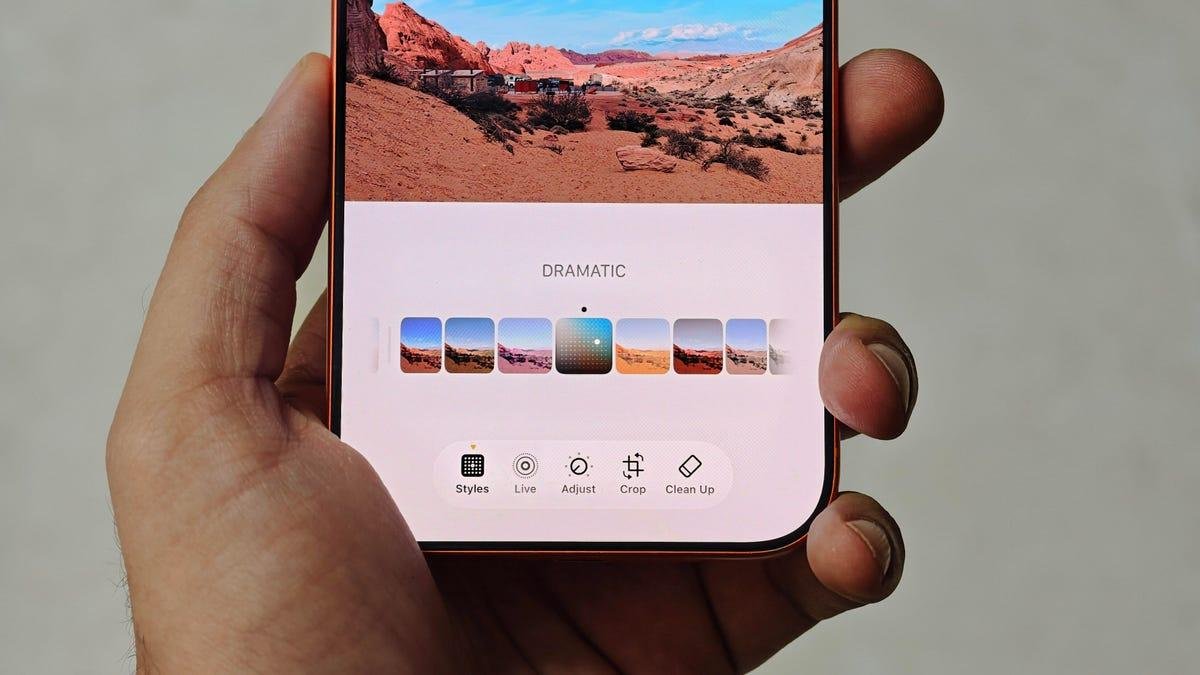
Prakhar Khanna/CNETThese Styles aren't about getting the factually accurate colors, but giving you the creative freedom to explore and experiment with colors and mood. For example, in the shots above, I used the Dramatic mood to change the sky to a teal shade and slightly brighten the area under the sunlight. It gave this photo of the Valley of Fire a more lively look.
When using the new Photographic Styles, you get two options, Undertones and Moods, to adjust the look of your photo. On the iPhone 17 series, there are seven Undertones and nine Moods.
You can swipe to select one, then adjust the intensity using the sliders below the viewfinder. It takes a few edits to find the best Styles for different scenarios, but once you get through it, you open a plethora of new editing options and find your own style.
How to use Photographic Styles on an iPhone
You can also choose a default Photographic Style by going to Settings > Camera > Photographic Styles.
Prakhar Khanna/CNETThe Photographic Styles sit inside your iPhone's Camera app. To select a Style, you need to:
- Open the Camera app on your iOS 26-running iPhone.
- Swipe up just below the viewfinder to access camera settings.
- Tap on Styles, then swipe left and right to preview them.
- You can further customize a specific style by dragging your finger on the slider to adjust the tone and color.
- Tap X to close the Style menu.
If you don't like the look of your shots, you can always return to this process and repeat it until you find the Photographic Style that suits your vision. You can edit these images later in the Photos app by opening Photos, tapping the Options icon and selecting Styles.
However, you'll see the option to edit Styles only for photos captured in High Efficiency mode. I only recently realized this after coming back from a photowalk, when I shot my photos in the Most Compatible format.
To check or edit your format preferences, go to Settings> Camera, select Formats, then tap High Efficiency.
Does my iPhone support the latest -generation Photographic Styles?
The latest-generation Photographic Styles are only supported by the iPhone 16 and iPhone 17 series.
Prakhar Khanna/CNETApple announced the first generation of Photographic Styles with the iPhone 13 series in 2021. It added five ways to adjust the tone of your photos with standard, rich cool, vibrant, warm and cool. Those are supported by every iPhone launched since the third-generation iPhone SE and the iPhone 13 lineup, and beyond.
However, this is very different from the latest-generation Photographic Styles, which understand an image's depth and offer granular controls over specific parts of an image. The new-gen Photographic Styles are only supported by the iPhone 16 and iPhone 17 series, including these models:
- iPhone 16
- iPhone 16 Plus
- iPhone 16 Pro
- iPhone 16 Pro Max
- iPhone 17
- iPhone 17 Pro
- iPhone 17 Pro Max
- iPhone Air
The iPhone 16E and iPhone 17E are not supported.