


The Pixel 11 Pro is a great phone, no thanks to its flashiest new features
The Pixel 11 Pro is a great phone, no thanks to its flashiest new features
Google is trying to get you off your phone. The Pixel 11 Pro is “A Phone Designed to Help You Use It Less,” the company promises. It can proactively help you book restaurant reservations, take the best frames from a video, and help you voice-text significantly faster. The pitch is that the new features bundled with the Pixel 11 series of phones can help fix your relationship with technology — one that Google knows has badly degraded in recent years.
But the hardware of the Pixel 11 Pro and 11 Pro XL is very similar to last year’s models — and in at least one case, a downgrade — so those software features are pretty much the entire pitch.
Over the last week testing the 11 Pro, I’ve been trying them all to see how much they can help me put my phone down. Like many experiences with Google software, when they work, they are genuinely helpful. But getting them to work often requires a very narrow set of circumstances that some Google engineer probably dreamed up in the “society if” utopia lab.


$1099
The Good
- Incredible build quality
- Rambler is a game changer
- Camera Looks is a step in the right direction
- Magic Capture is a great feature
The Bad
- Less RAM for the base model than last year
- More expensive base model
- HiLight is a huge disappointment
- Proactive Assistance only works in very narrow circumstances


$1299
The Good
- Incredible build quality
- Rambler is a game changer
- Camera Looks is a step in the right direction
- Magic Capture is a great feature
The Bad
- Less RAM for the base model than last year
- More expensive base model
- HiLight is a huge disappointment
- Proactive Assistance only works in very narrow circumstances
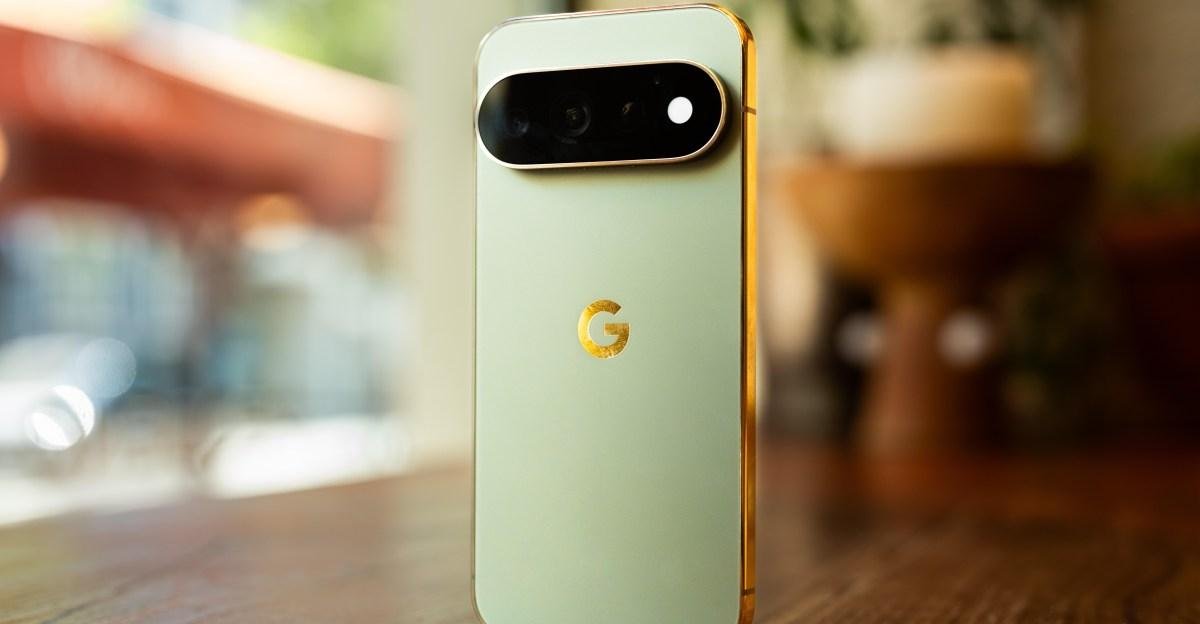
The Pixel 11 Pro and 11 Pro XL are minor hardware updates compared to last year’s Pixel 10 Pro and 10 Pro XL. They both get brighter 3,600-nit screens. Their charging has been upgraded, with faster wired speeds and Qi2.2 for up to 25W when wireless. The 5x optical telephoto camera has a bigger sensor that Google says enables 30 percent more light intake. Storage now starts at 256GB, instead of 128GB. And there’s also a fancy new “notification light,” which I’ll get to in a bit.
Unfortunately, these upgrades come with a downgrade too, for the base model at least. The 11 Pro and 11 Pro XL now start with less RAM: 12GB compared to the 16GB that came standard last year, the same amount as the regular Pixel 11. I’m testing the 16GB / 512GB model, so unfortunately I can’t tell you if the RAM decrease is noticeable. That base model is also $100 more expensive than last year, too, at $1,099.
With such minor spec changes, Google has gone all in on software this year. And this time, that software’s primary purpose is to get you off your phone, or at least get tedious tasks done faster so you can get back to your life.

Perhaps the largest push in this direction is the Pixel 11’s new “Proactive Assistance” feature. This is a set of dynamic chips that appear when certain interactions happen on your phone, like a friend asking what your schedule looks like next week or if you booked that table at a restaurant yet.
For the most basic interactions, like checking availability or adding an event to my calendar, I found Proactive Assistance really helpful. I practically live inside my calendar, and text conversations about scheduling are common. When my friend Marc texted me asking when I was available next week, Gemini popped up and suggested checking my calendar for times. Outside of simple scenarios like that, though, Proactive Assistance gets less reliable. One of Google’s key examples is letting Gemini book a dinner reservation for you if you’re chatting about heading out to eat, but I had to receive a text with an extremely specific string of information to get it to work — and even then it only worked sometimes.
It’s odd that explicit keywords are necessary to get so much of Proactive Assistance to work
For example, receiving the text “Can you make a reservation at Frankie Spuntino next Saturday at 7pm?” surfaced a chip to agentically try to make the reservation. But if the message doesn’t include the date or time, it won’t invoke anything at all. Most of the time when the chip does show up, it disappears the moment I reply. Occasionally it will stick around if the AI thinks we’re still talking about the restaurant, but those instances were few and far between. I wish Google would keep the chip around for at least a few messages, or have it float around the messages in some way.
One promise of large language models is the ability to understand what you mean and remove the requirements for smart keywords, so it’s odd that explicit keywords are still necessary to get so much of Proactive Assistance to work. I can see what Google is trying to do with this and I can maybe see a future where it gets refined, but as it stands, it’s simply too inconsistent. Plus, I had to manually toggle on Proactive Assistance and add OpenTable to connected apps in settings, which I just don’t think most people will know to do. As my colleague Cameron Faulkner puts it, “You need to be proactive to get Proactive Assistance to work.”
Proactive Assistance is advertised as working with other scenarios too, like surfacing your flight information when someone asks what time your flight is or bringing up the right photo when someone asks for it. But both of these scenarios either failed or were inconsistent for me. Asking when my flight is supposed to land surfaced nothing even though I have flight information in my Gmail, and when my friend asked for a photo of me from 2024, it surfaced photos from 2024, but none of me. It’s disappointing that this feature only works in such narrow circumstances. I can see the vision, but the execution just isn’t there yet.

Another feature that got a lot of marketing hype but flatlined on its delivery is HiLight. You may have noticed the temperature sensor is missing on the Pixel 11 Pro. Instead, Google has replaced it with a multicolored LED ring hidden inside the flash that can glow when different things are happening on your phone. Again, in concept, I love this idea. Google wants you to be living your life, with your phone placed face down on the table so it can’t distract you unless HiLight notifies you of something you need to pay attention to. In practice, HiLight is so badly executed that it’s frankly embarrassing.
Right now, HiLight can glow for exactly two things. First, it will glow and animate when you’re speaking with Gemini, but only while your phone is face down on the table. These are two things I do not do very often. When I use Gemini, I’m generally typing to it, and when I do use Gemini voice mode, my phone is in my hand or sitting screen up. If this was just one of the many things HiLight could light up for, I wouldn’t find it so offensive. But at the moment, the only other thing HiLight will glow for is for calls from your favorite contacts. I wish I was kidding.

If I’m getting a call from a favorite contact, I just want my phone to ring. Again, if it was just an additional feature, then sure, I guess. I don’t mind having an additional indicator that a favorite is calling me while my phone is face down. But if the call is coming through anyway, it’s really not that much effort to turn the phone over and see who it is. To make it worse, you can only choose from five colors, and one of them is white!
Customizable RGB LEDs were a feature we lost long ago, but when we did have it, it was almost always possible to map to just about any notification you wanted: red for a new email, green for a WhatsApp message. Google has confirmed that it’s looking to add text notifications from favorite contacts to HiLight, but why not just make it customizable to any app? This feels like such a missed opportunity, and it’s wild to me that it wasn’t better thought out before launch. Right now, it’s just acting like my flash, like it’s always been.
There are some new features that I’m finding genuinely useful that do help me stay in the moment, though. I was most pleasantly surprised by Rambler, a souped-up voice-to-text tool powered by Gemini. Rambler removes the filler words that voice-to-text would normally pick up, does proper grammar and punctuation without explicitly asking for it, and will even rewrite misspeaks mid-recording. The speed of the Pixel’s voice-to-text has been one of its strong suits ever since Google started using its own Tensor chips on the Pixel 6, but Rambler makes this even better, to the point where I’m dictating the text on my phone whenever I have the opportunity. It is a genuinely great feature, saves me time, and almost makes it feel like I’m having a conversation in real time while texting.

As is tradition, Google also introduced a bunch of new camera features this year, and perhaps the most prominent is Magic Capture. The feature is front and center in the camera app right next to the photo and video modes, which tells you something about how confident Google is in it. Start a Magic Capture, point it at what’s happening, and when you’re done recording, Gemini will do some processing and pull out what it considers the best photos and video clips from the session.
During the Made by Google keynote last week, Google demoed the feature by recording some people shooting hoops on a basketball court. In the demonstration, Google said you could simply hold your phone and let it record while you take in the moment with your eyes. I have tried this exact scenario quite a few times, and let me tell you, it is extremely difficult to keep your subject in frame if you’re not staring at your screen. Magic Capture did a great job of pulling relevant images and clips from my recordings when I was making sure to keep my subject in frame by, you know, staring at my screen, but unless you have your phone mounted on a tripod or something, it’s naive to think you can ignore your phone completely.
That caveat aside, I really like this feature. I take a lot of videos on my phone, but I’m much more likely to revisit pictures. With Magic Capture, I can have both. The main caveat seems to be that stabilization isn’t as good on the clips it cuts compared to clips you’d take in video mode. Even so, I think Magic Capture will be useful for parents trying to capture moments of their kids, without needing to work so hard to get the perfect smile for a photo. Instead of marketing this feature as something that lets you be in the moment by not looking at your phone at all, it would probably be better to pitch it as something that will automatically grab great photos and short video clips for you, and all you need to do is point your phone and hit record.
While Magic Capture took most of the spotlight in Google’s keynote, maybe the most discussed photo upgrade this year is Camera Looks. I did a whole interview with Google’s camera chief about this feature going deep into how the new system was made, and there’s a lot of potential in the execution. Camera Looks is a new photography feature you can think of similar to Fujifilm’s film simulations, which let its cameras emulate different film styles on the JPGs they put out. On the Pixel 11 series, there are four modifications of the standard camera, with Original, Natural, Shadows, and Vanilla giving subtle tweaks to your image. But if you want to get more out there, there are six additional creative looks, called Editorial, Velvet, Classic, Digi, Black Tie, and Minimal.
Each of the looks can be modified to your liking, with adjustable settings like contrast, highlights, shadows, vibrance, tint, warmth, sharpness, and grain. What makes this a really interesting feature to me is that Google is adjusting the amount of computational processing it’s doing at capture, based on the settings you choose; it’s not just applying filters later. For example, the Digi mode will do less frame stacking and the Minimal mode will apply less sharpness and contrast.
I really dig the looks, even right out of the box. They span from basic edits to quite inspired, and if you’re looking for something that gives you the “film simulation look” straight out of camera, these definitely deliver. It was high time Google added some more creative looks to the Pixel, especially considering it doesn’t have nearly as robust a third-party camera ecosystem as the iPhone. I’ve personally made the Minimal mode permanent on my phone for its unsharpened, minimally contrasty look, occasionally switching to Classic, but after testing them all, I think Velvet and Editorial will get a lot of use, since they have the most “film aesthetic” of the bunch. With less processed photos, you can actually see texture in photos, which is normally washed away by noise reduction algorithms.
Overall camera quality on the Pixel 11 Pro series is great this year, and practically the only reason to pick up a Pro Pixel over the standard 11, aside from wanting a larger phone, in the case of the XL. The primary sensor is technically new, but Google tells me it’s the same size as last year and was swapped in because it uses slightly less power. The biggest camera hardware change is the new larger telephoto sensor, which Google says captures more light, and I can tell. Telephoto cameras are usually the weakest link in a smartphone’s camera arsenal, but even at 10x zoom, which is a 2x crop of the telephoto sensor, it was hard to notice any significant quality degradation. Plus, the transition between sensors is much smoother now, with only a very slight jump when switching between lenses.

The Pixel 11 Pro also includes a 120x Pro Zoom mode, enabled by the new image signal processor in Tensor G6. Like the 100x Pro Zoom on the Pixel 10 Pro, Google is using generative AI to upscale your highly zoomed-in images to make them look more realistic. On objects without a lot of sharp edges this actually does a pretty good job, and Google will give you both the non-AI-enhanced and enhanced versions so you can see the difference.
I was in Spain during last week’s solar eclipse, and the Pixel 11 Pro did a good job of turning a zoomed-in photo of the moon from a blurry mess into something that looked good enough to elicit responses of awe when I posted it in Slack. But that was a relatively simple image, and shots with a lot more detail often look like an early AI-generated image, with skewed angles and edges, garbled text, and muddy tones. I’d only really use this if you needed to see information you can’t see with your normal eyes, not for artistic purposes.


The Pixel 11 Pro also gets a new, faster Night Sight, which Google says is about three times faster on average than the Pixel 10 Pro. In testing, most Night Sight images I took only needed to be held for one second, and I got all the same benefits you got from holding the phone for three or more seconds previously. This is the kind of quality-of-life update I love to see, and I’m glad Google is continuing to improve here.
I love Rambler, Magic Capture, and Camera Looks. If you’re looking to upgrade your phone this year, they’re legitimately great features. But after a week of use, it’s clear to me that the Pixel 11 Pro is not yet smart enough to help me use my phone less, despite what Google claims. Proactive Assistance is only bound to save you a few seconds and a few taps compared to just opening the apps and doing the steps yourself.
If you were hoping for the Pixel 11 Pro would help address your phone addiction, that’s probably not going to happen. But if you’re looking for a phone with the best voice-to-text on the market, great cameras with good built-in style, and solid hardware, the Pixel 11 Pro delivers.
Photography by David Imel / The Verge
Follow topics and authors from this story to see more like this in your personalized homepage feed and to receive email updates.
Sponsor
Zoekertjes
Zoekertjes
Zoekertjes
Categorieën
Read More
Once you arrive, head inside the building and locate the zipline leading down into the basement. Ride the zipline down, and you'll arrive in a large lobby area. A massive Mantikor logo on ARC Raiders Coins the wall confirms you've reached the correct location. This lobby serves as the central hub for the underground complex and the starting point for the next part of the quest. Finding the...

What links a bomb in Monaco and a shooting in Ukraine?Ukrainian intelligence agent Vladyslav Reut says he did not kill Anastasiia Berezovska - a woman suspected of trying to assassinate a multimillionaire in Monaco - despite earlier confessing to it. Reut instead blamed his co-defendant Vitalii Zhykovych for the killing of Berezovska. BBC correspondent Sarah Rainsford was in the courtroom in...

Kia Covers All Powertrain Bases: New Seltos, EV3 Debut at New York Auto Show The Korean automaker debuts gas and hybrid variants of the Seltos SUV and announces the arrival of the all-electric EV3 in the US. Whether you're looking for a traditional combustion car, a hybrid or a full-electric vehicle, Kia has brought a little something for everyone to the 2026 New York Auto Show. On...
OpenAI poaches Uber India chief to lead its biggest market outside the US OpenAI is making yet another big, visible bet on India. It has appointed former Uber India and South Asia president Prabhjeet Singh as its first managing director for the country to scale its presence in what it has called its second-largest market after the U.S. Singh, who announced his resignation from Uber on Friday,...
Harvey reportedly raising at $11B valuation just months after it hit $8B In Brief Posted: 10:21 AM PST · February 9, 2026 Image Credits:Harvey There appears to be no stopping legal AI startup Harvey’s skyrocketing growth, with VCs continuously throwing money at it. The company is reportedly in talks to raise another $200 million at an $11...