


My FanCam Is My Favorite New AI Feature – Because It Doesn’t Generate Anything
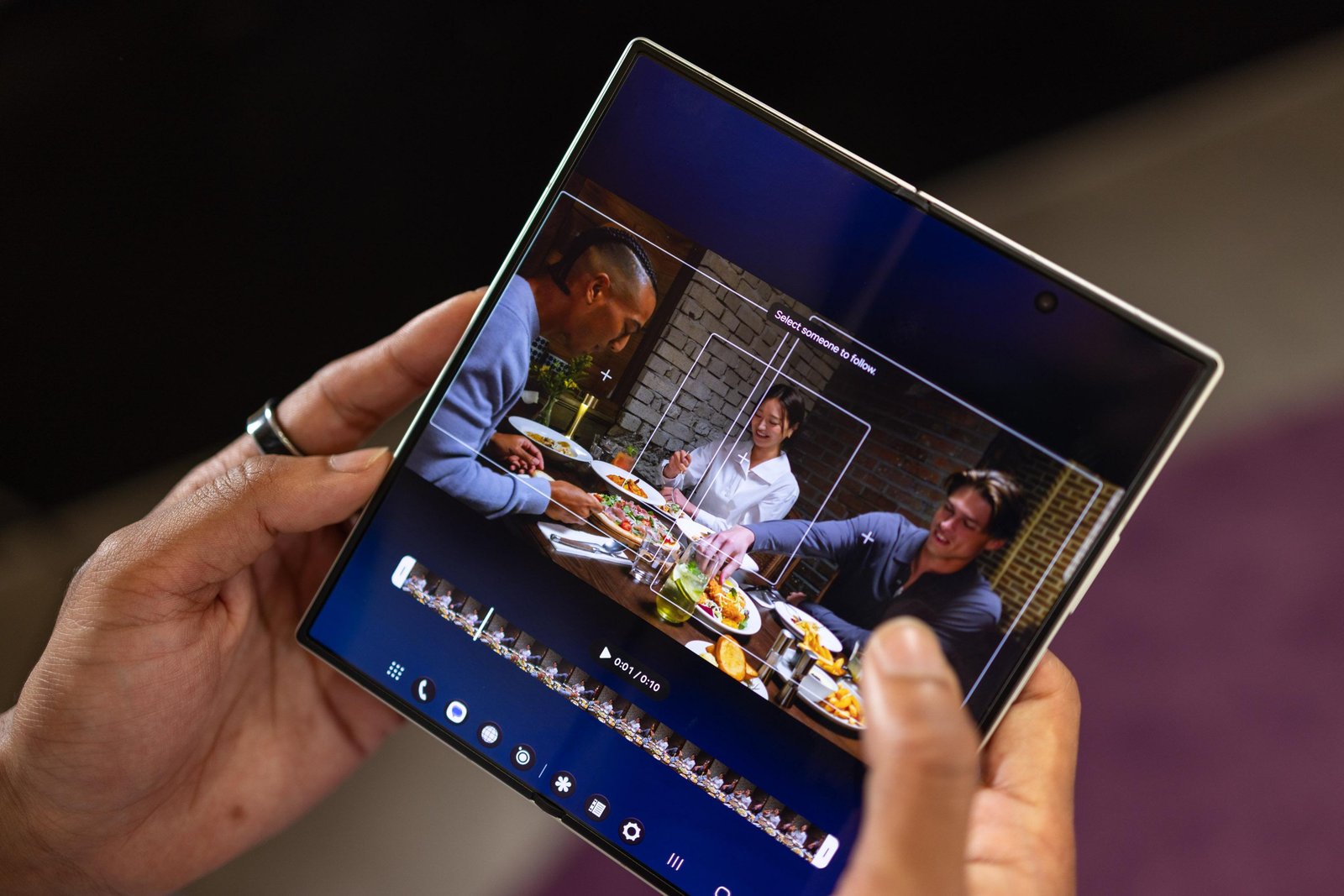
My FanCam Is My Favorite New AI Feature – Because It Doesn’t Generate Anything
Samsung’s new My FanCam feature is already one of my favorite Galaxy AI features for a simple reason: It’s not making anything up.
So many previous Galaxy AI features like Sketch to Image and AI Eraser have been about adding or removing things from photos, creating an image that’s not remotely real because it’s just generating what you’re requesting.
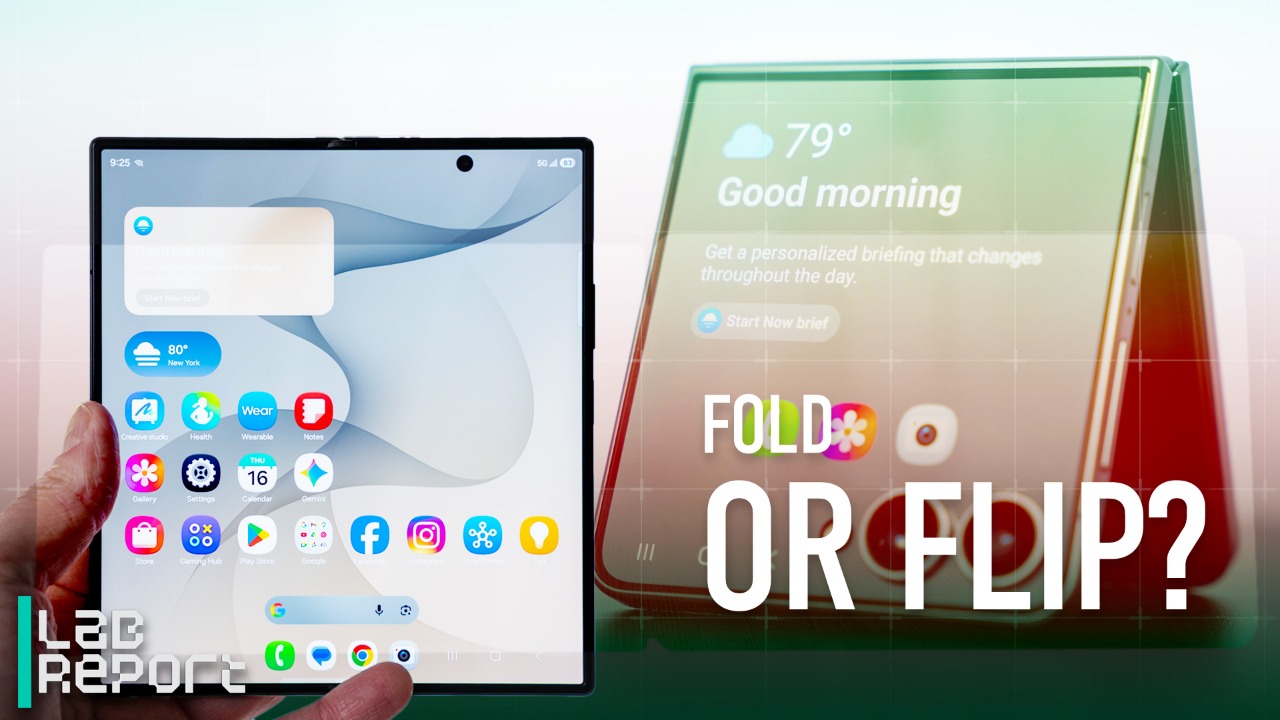
What My FanCam does is simply make AI your personal cameraman, letting you create a focused video on a consistent subject. FanCam videos themselves aren’t new; there are lots of fun videos online that focus on a consistent subject, and there are other apps that help you make them. But by integrating this concept directly into Samsung’s editing tools, it significantly speeds up the process of creating an action-style video that focuses just on one person.

While Samsung is debuting My FanCam on the Galaxy Z Flip 8, Fold 8 and Fold 8 Ultra, it’s likely that the feature will make its way to other phones supporting One UI 9, like the Galaxy S25 and S26 series. But for now, the feature is exclusive to Samsung’s new foldables.
Using My FanCam is very easy. First, you record a video using the camera app. Then open Samsung’s Gallery app and select the video. You then hit the Galaxy AI icon, and the video is quickly scanned. Then, at the bottom of the screen, you see the My FanCam option.

After choosing that option, the phone shows it has detected people in the frame. You can then tap the subject you want the video to follow and select the screen ratio for the exported video. Ratios like 9:16 will give you a vertical style video, while 1:1 and 3:4 will be more horizontal.

Once you make those selections, tap Follow to see a preview video that focuses solely on the subject. The new video acts like an AI cameraman is following the subject closely around, paying no attention to anyone else. You can then select Save copy to save this FanCam-style video.

I fully expect Google and Apple to eventually have their own versions of this feature as more AI features develop. There’s often a general grimacing toward using AI to generate images that pass as realistic, but in this case, AI is only doing some light editing work — and isn’t creating anything new. That’s why a tool like My FanCam is fun: Galaxy AI isn’t creating anything out of thin air; it’s just giving you a closer look at who you want to be the star of your show.

Mike Sorrentino
Senior Editor
Mike Sorrentino is a Senior Editor for Mobile, covering phones, texting apps and smartwatches -- obsessing about how we can make the most of them. Mike also keeps an eye out on the movie and toy industry, and outside of work enjoys biking and pizza making. See full bio
Commandité
Commandité
Commandité
Commandité
Annonces
Catégories
Lire la suite
Apple Reportedly Testing Glasses AI in Several Frame StylesIt appears consumers will be able to pick a style of Apple smart glasses that suits their tastes. Bloomberg's Mark Gurman reported Sunday that Apple is testing at least four frame styles to rival those of smart-glasses maker Meta. The company is also reportedly working on a new camera setup for its first foray into smart glasses.Apple's...
Article Summary OSRS gold Ever listed an item on the Grand Exchange for the "official" price, only to watch it sit there unsold for 30 minutes? Ever been tricked into buying a low-volume item at a wildly inflated price? Why do experienced merchants always seem to buy at the bottom and sell at the top while everyone else gets stuck holding the bag? For years, the Grand Exchange...

Today's NYT Mini Crossword Answers for Tuesday, April 21Looking for the most recent Mini Crossword answer? Click here for today's Mini Crossword hints, as well as our daily answers and hints for The New York Times Wordle, Strands, Connections and Connections: Sports Edition puzzles.Need some help with today's Mini Crossword? I thought that 4-Across, 7-Across and 3-Down were...

Statue of baseball player Ichiro Suzuki broken as it is unveiled in SeattleGetty ImagesFans of former baseball star Ichiro Suzuki were thrown a curveball when a statue of him broke as it was being unveiled outside the home of the Seattle Mariners on Friday.As a blue tarp was pulled off it, audience members could hear a snapping noise as the bronze figure it was shrouding suddenly appeared to...
New leaders, new fund: Sequoia has raised $7B to expand its AI bets In Brief Posted: 7:55 PM PDT · April 16, 2026 Image Credits:Dani Padgett/StrictlyVC Few venture firms have bet more aggressively on AI than Sequoia Capital, and it isn’t slowing down. The Silicon Valley stalwart has raised roughly $7 billion for a new fund, according to...